
World Class. Worldwide.

Founded on the ideals of inclusivity, diversity and collaboration, the University of London is a pioneering institution committed to increasing access to education, championing research excellence and delivering social good.
News, events and updates

UoL set to lead research project on EDI in the context of online and distance learning
The University of London has won funding from Advance HE’s Collaborative Development Fund (CDF)

Senate House Library launches ‘Seized Books!’ exhibition marking 40th anniversary of ‘Operation Tiger’ raids
A new online exhibition marks 40 years since the infamous 1984 Operation Tiger raids on Gay's the Word bookshop.

University of London Vice-Chancellor Wendy Thomson hosts AI debate in Singapore
University of London Vice-Chancellor Wendy Thomson CBE attended several events in Singapore last week...

Five minutes with entrepreneur alumna, Ugonna Nwakanma
Ugonna Nwakanma tells us about her nomination as a finalist in the Business and Innovation at the British Council Study UK Alumni Awards means to her and her entrepreneurial work.

The Future of Education: In-Person Learning vs Distance Learning
The education landscape has undergone a dramatic shift, accelerated in response to the challenges presented by COVID-19.

‘Distant Islands, Spectral Cities’
For this second series of gatherings in his ‘Distant Islands, Spectral Cities’ research project, a week-long series of events taking place in Paris.
What our students say
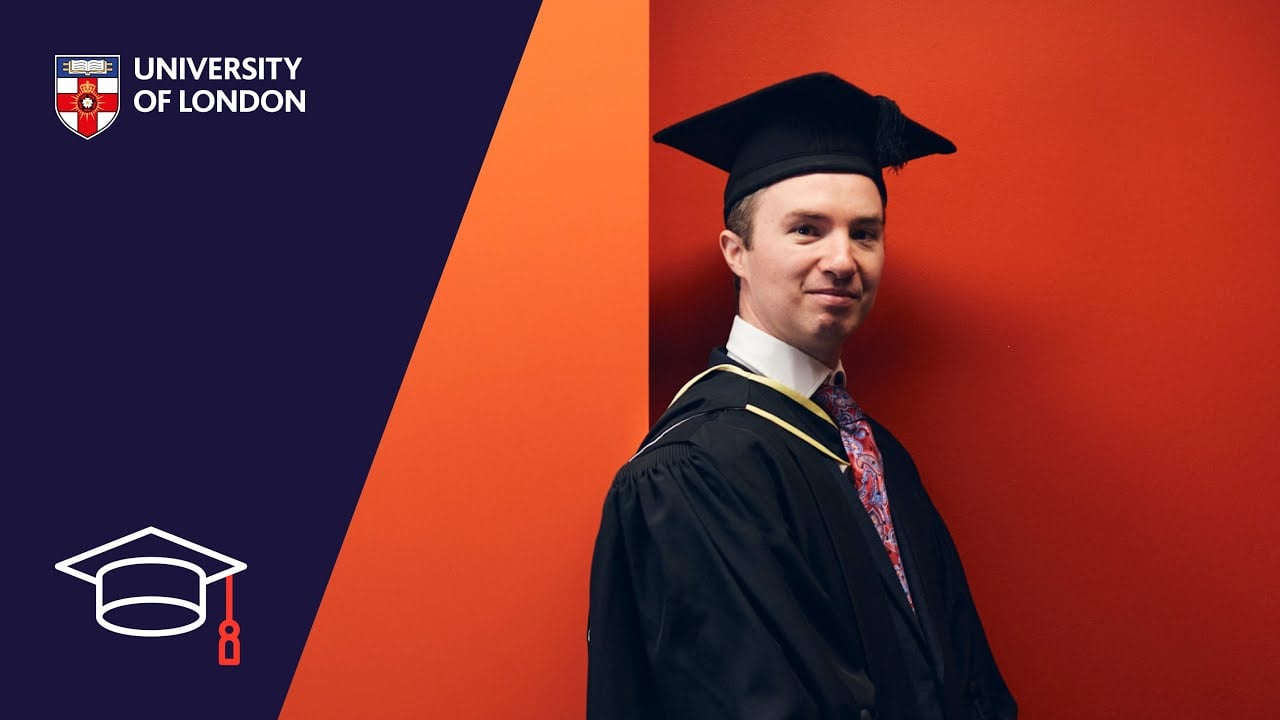
“The online platform enabled me to work while I was studying, and I didn't have to worry about commuting.”
Simon Horton
BSc Computer Science
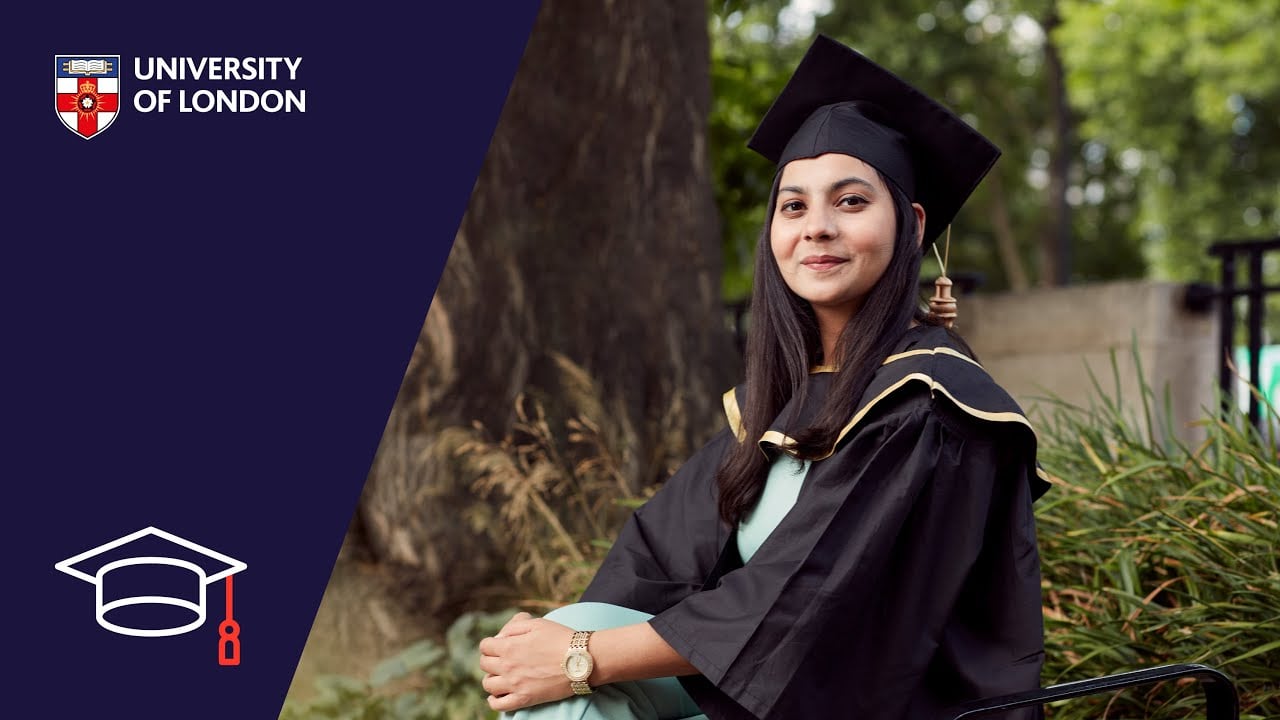
“I'd heard a lot about the University of London LLB. You can get a world-class education in your home country.”
Maarij Shabbir
Bachelor of Laws (LLB)
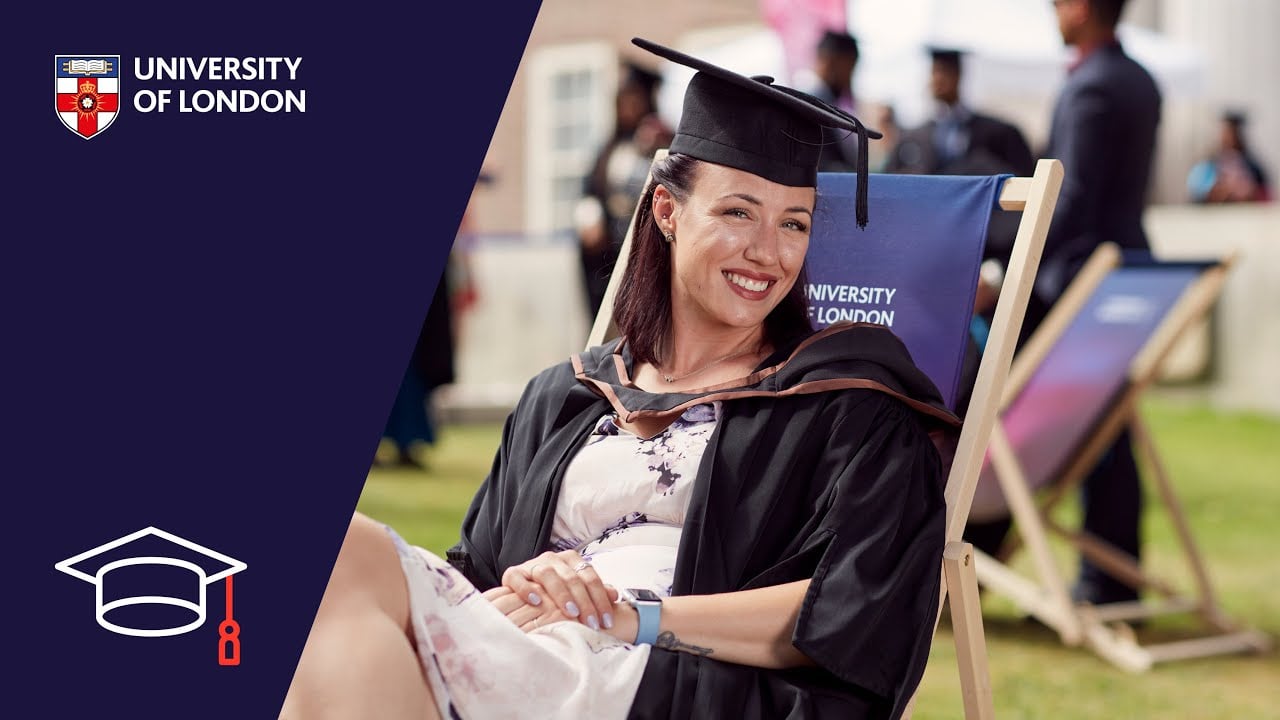
“If you’re able to learn independently, I would absolutely recommend a University of London degree – the professors are incredible.”
Stephanie Browning
MA Human Rights
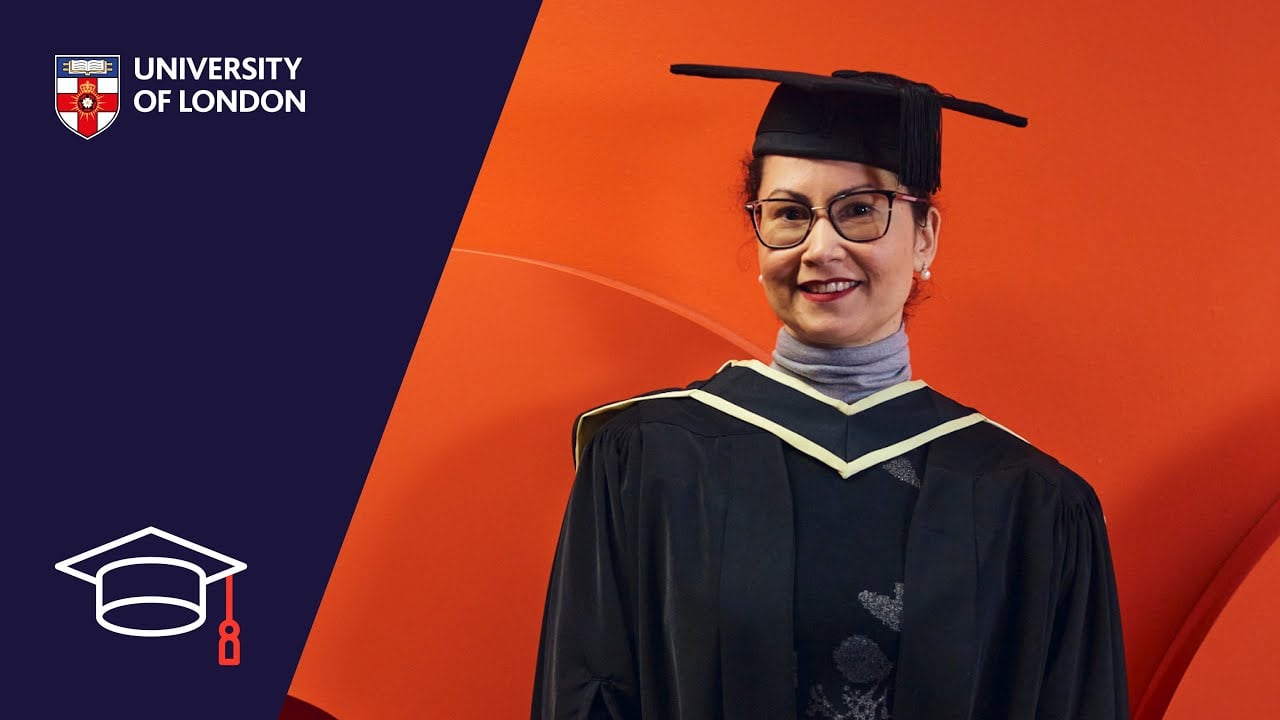
“I would absolutely recommend it. I learned a lot. They take this education really seriously.”
Cristiane Jesen
MSc Clinical Trials
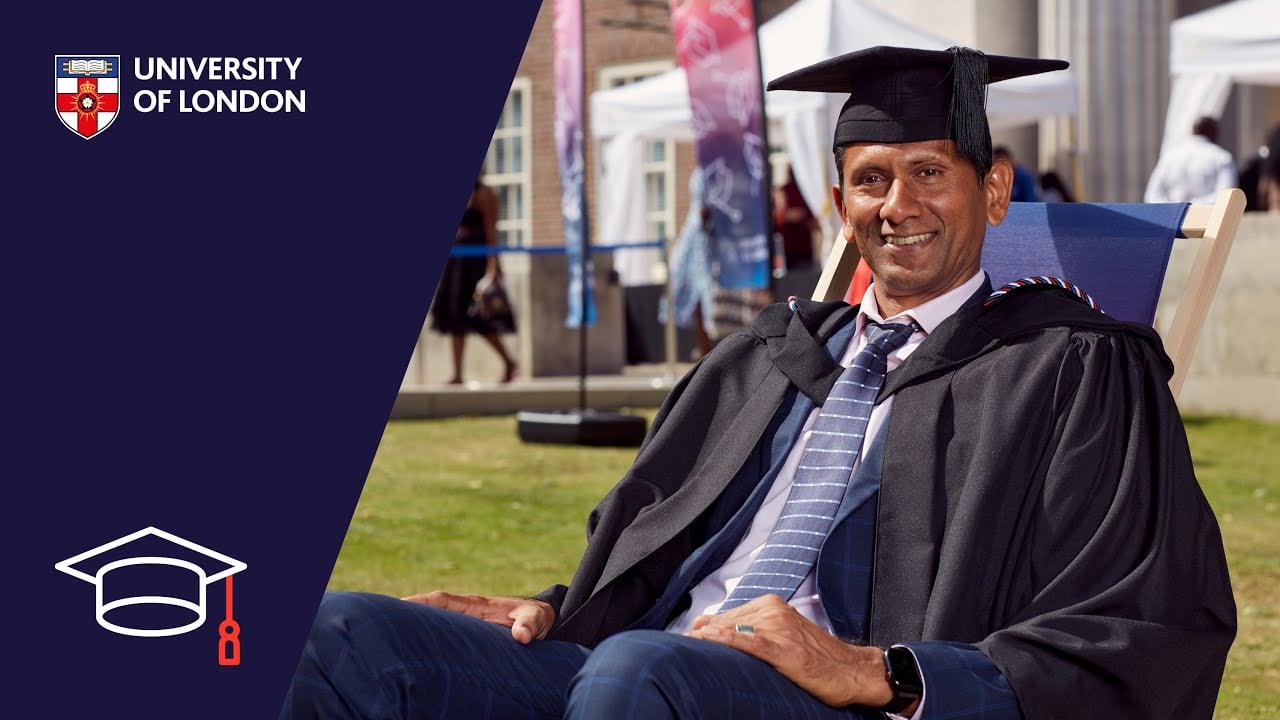
“Every subject and topic I studied was extremely interesting, and that's what kept me going.”
Venkatesh Prasad
PGCert International Sports Management
Our federation
We are a federation consisting of 17 independent members. We work together to deliver the best education in London and across the world.
Learn more about our federation


